
My Career Story
Warning
This is a long essay (to steal from @weremeow's vernacular). If you don't have a lot of time to spare right now but you are interested in reading it, come back to it when you have more time. Those of you who spent any amount of time with me at Met Dhabi and Breakpoint 2025 know that I love to tell stories and I'm often long-winded.
Also, I apologize in advance for the disorganization of this article. I'm a bit all over the place with my thoughts and words. My background is in computer engineering, so I'm much better at writing code than I am at writing words. I'll muddle my way through this. I did put some headings to provide some semblance of organization, and maybe help you skip some stuff you don't really care about.
Why Not Just My Crypto Story
Initially, I was going to write mostly just my crypto story. But I'm on a plane for the next 14 hours, and I'm still high on Met Dhabi and Breakpoint 2025. I've been posting on X that this trip was life-changing, and I feel the need to elaborate more on why. I have the time and motivation to do it. My professional career is integral to where I've gotten to today with my passion for crypto. So you're going to get my whole career story, not just my crypto story. Today, December 15, 2025 is the first day of my full-time career in crypto.
Motivation for Writing My Story
Just after the Met Dhabi drone show, I met a young serial entrepreneur from the UK. He was relatively new to the LP Army, so I made introductions to my @met_lparmy members. He and I really hit it off well. We hung out quite a bit at Breakpoint, and I had an absolute blast with him.
We split a cab together to the Abu Dhabi airport since I was taking the bus from there to Dubai. It was great having one last chat on the way to the airport. We weren't talking much about crypto, just about the world in general, and he told me about a stereotype about Americans that I wasn't really aware of.
He said that Americans have a stereotype of being great storytellers, and people love to listen to them tell their stories. Along with that, he informed me that we have the reputation of being full of shit, which is fair—there are plenty of us that certainly are. Most importantly, he told me that my stories are genuine, and I thanked him for the compliment. It emboldened me even further to tell my story. An additional bonus is that now when I speak to anyone from outside the US, I can speak more confidently. 🤣
Disclaimer: Some portions of my story may be full of shit.
The Machine
I was sleep deprived all last week at Abu Dhabi and Breakpoint, but adrenaline has kept me going. I guess that's what it's like when you're pursuing your passion. Some of the LP Army have been calling me "The Machine", because I was busy documenting the amazing trip I had on X. I may need to change my X name to The Machine.
I've been meaning to write this for some time, and there's no time like the present. I told many parts of my story to the amazing people I met at Met Dhabi and Breakpoint, but I'm not sure if anyone heard the whole story.
I can't sleep on planes, my entertainment screen isn't working, there's no Internet, and I'm still running on adrenaline. You can't make this stuff up, it's serendipity. The Machine is still at it!
My Professional Background
I've never worked professionally in crypto, and I've never actually even worked professionally as a software developer either. Sometimes I'll refer to myself as a programming hobbyist.
I have a bachelor's in computer engineering from the University of Florida (Go Gators!), a master's in business administration from the New York Institute of Technology, and in 2023 I received a master's in applied data science from the University of Michigan (Go Blue!). My brother-in-law referred to me as the world's oldest freshman. 🤣
I've spent pretty much my whole career as a data guru in some capacity. I took an Oracle SQL class almost 25 years ago, and I still use SQL today. Even when I worked as a finance manager, it was all just data. The numbers just happened to have $ in front of them.
The majority of my career has been in the fire and security industry with the same company. If you go to my LinkedIn, the roles you see under ADT, Tyco, and JCI were really at the same company. I've only worked for two other companies, Telemundo and Zeus Fire & Security. I won't bore you with details on what I've done over the years, you can just check out my LinkedIn profile.
Although I'm on LinkedIn and I have a lot of connections, I'm not really that active there. I actually did make a few posts on LinkedIn during Met Dhabi and Breakpoint, because I've been informing my network there of my desire to start a second career in crypto. I even changed my subheading, but very few on LinkedIn will understand what it means.
An Old Man Finally Figuring Out X
Until last week, I've mostly lived on LinkedIn. I'd hardly say I'm even living there, because I have a total of maybe 5 posts. My participation on X was almost nothing until I started doing the Meteora LP Army Bootcamps. I didn't even know what CT was until just a few weeks ago. I still trip up and call it the Twitterverse. I'm 50 years old, probably 2x the age of the average X user if not more.
I'm finally coming around to realize that if I want to get a job in crypto, I need to be more active on X. I've never been more active than I was last week, and I had a blast doing it. I never really got social media, but now that I have a passion to tweet about, I'm starting to get it.
Why I'm Bullish on Blockchain Tech
NFTs came and went. Memecoins are currently fading. I don't know what the next speculative fad will be, but there very likely will be another and many more to come. I haven't really participated in any of the speculative fads, but that doesn't mean they aren't important for the ecosystem.
These fads are fueled by incredible tech, superbly talented creators, developers, builders, personalities, and so much more. The Solana Foundation is keenly aware of this, and has fostered an environment for explosive growth like no other company or blockchain I've seen. Breakpoint further opened my eyes to the endless possibilities on Solana, with so many different companies coming together under one roof.
Many have said it feels like the early days of web2, and it really does. Solana and web3 have already unlocked a lot of use cases. With all of the incredible talent building on Solana, I have no doubt that there are many amazing use cases that no one has een tried yet.
I would be a fool not to start my second career today in crypto.
Speculation is Rampant in Crypto
Note
This section is a bit less about my story, but reflects some important views I have about crypto. This is probably something more appropriate for LinkedIn than here, but I'm including it anyway because I'm long-winded and I still have about 8.5 hours to go before I get to Miami.
When Bitcoin came onto the scene, the tech seemed pretty cool, but I wasn't terribly interested in it. I definitely wasn't interested in it as an asset, because it was pure speculation. I've always put my retirement money into stocks and ETFs, which represent equity in companies that have cashflows, profits/losses, physical products or services.
When you buy a token, it doesn't represent equity. In my eyes, it is like owning a merch sticker you got at Breakpoint for a company, and its intrinsic value is about the same as a merch sticker. It doesn't give you access to shareholder votes, dividends, equity, etc. For that reason, I've never put my own paycheck into it.
If I try to argue with a crypto bro that crypto is speculation and stocks are not, they will tell me I'm full of shit. Even a lot of the general population would tell you that stocks are speculative. Certainly there are some stocks that are worthless and managed to get driven to ludicrous valuations by retail investors (I'm looking at you GME). However, GME still has a balance sheet, income statement, and cashflow statement. A crypto token doesn't represent any of these things (unless you're buying tokenized stocks and other RWAs).
If you have a solid fundamental valuation model for crypto, I'd love to learn more about it. Until someone can show me a sound valuation model for crypto, I will maintain that its value is based purely on speculation.
I've managed to accumulate some crypto, but not with my own paycheck. At this point I have accumulated more than I would ever care to buy anyway, so there's no reason for me to ever put my own paycheck into it at this point. There will be more to come on that a bit later.
My Paradoxical Nature
Note
This section will also probably become fodder for a LinkedIn post. I still need to figure out a better way to frame it for the audience, but there's a message somewhere in here I need to send them.
It seems contradictory that I wouldn't put my own paycheck into crypto, but I'm extremely bullish on the tech. A crypto bro friend of mine has a really hard time understanding how I could possibly be so contradictory. I've had a hard time explaining it, but sleep deprivation and adrenaline are on my side this morning. I suppose a big part of it is that I'm relatively well-versed in business and tech, and I really enjoy both.
Jack of All Trades
When I reflect upon my professional career up until now, I see my resume peppered with a lot of roles that involved aspects of both business and technology. Although I got my foundational education in tech and my first real job in IT, I've spent the vast majority of my career in roles outside of IT.
I have a lot of breadth, but not depth. I know a little about a lot of things, but I don't know a lot about anything. I'm a jack of all trades, master of none. I've committed career suicide by spreading myself thin doing so many different things, and now I need to rectify that. I've been looking for a job for the last three months and haven't gotten any offers yet. It's because I've been looking in the wrong place. Met Dhabi and Breakpoint solidified my decision that crypto is the place for me.
Crypto as a Hobby
So in 2017, I came to learn of Ethereum. I was fascinated by the fact that you could conduct decentralized transactions with no custodian. The Ethereum Virtual Machine (EVM) is what really drew me in. But I wasn't interested in buying it on a centralized exchange. I wanted to get some, put it on chain, and start using the cool DeFi tools teams were building on Ethereum.
For the vast majority of my life I've been a gamer. I had a gaming rig with an NVIDIA GTX 1070, which at the time was a decent card for PoW mining. I was using Nicehash, and would get paid in Bitcoin. I would move the Bitcoin off chain into a CEX, swap to Ethereum, and then move it onto Ethereum.
I would pay off one video card with earnings and buy another. I had accumulated a few thousand dollars worth of crypto GPU mining. My earnings would be split between selling to take profit to pay off cards and then putting the rest on chain. I was using tools like Uniswap (my first foray into liquidity providing), dYdX, 1inch, Compound, you name it.
Eventually, because of network congestion and the price of Ethereum going up, I got priced out of the platform on fees. I didn't have a lot of money, and the EVM contracts I was messing with were a lot more expensive than just performing swaps. So I stepped away from messing with DeFi on Ethereum. I continued GPU mining until maybe 6 months before PoS. I didn't want to be left with a pile of worthless video cards, and they were still fetching a premium for mining.
Somewhere in between there, I came across an article about Uniswap performing a token airdrop. I was a bit out of touch, so when I realized it, the airdrop had already happened a few months prior. All told, I think between Uniswap, dYdX, and 1inch, it was like a $30K airdrop. I'm an OG airdrop farmer. I was airdrop farming before airdrop farming was a thing.
Time for a New Blockchain
I have much love for Ethereum. When I got those airdrops, since I had a lot more than I had before, I did mess around a tiny bit with DeFi on Ethereum again. But I came to realize fees were still eroding my capital. So of course, that's when I found Solana.
I need to use the new Helius features to read my OG wallet to see when my first transaction was so I can put an exact date on it. When I came to Solana, Raydium of course was the dominant DEX. I also messed with Serum, Step Finance, and Tulip. I can't recall if Orca was on the scene yet, I don't think they were.
Waiting for Jupiter (the Product not the JUP Token)
One thing that Solana lacked was an AMM router. In May of 2021, I posted this to the Solana Reddit: "Solana Needs an AMM Aggregator/Router".
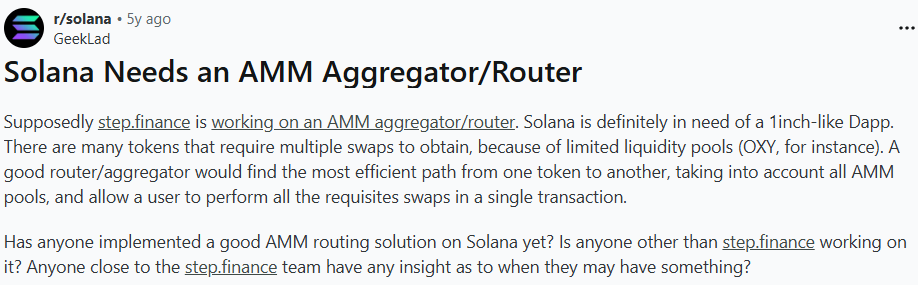
Only 22 likes (21 if you discount me liking my own post 😂) and if you read through some of the comments, you can see it mostly fell on deaf ears. I think a lot of the Redditors that responded didn't really know what an AMM router was or why it was needed. I tried to explain as best I could.
So I wanted Jupiter to exist before it existed. I wanted to airdrop farm it before it was even a product. That's some kind of OG status, but I don't know what to call it. I've always had a fascination with arbitrage, and I was really interested in using Jupiter to do it.
In the very early days of Jupiter, you could actually manually do arbitrage using the UI in two separate transactions. You didn't even need to do it atomically. You use the UI to swap one token and get the other. There was even a cheat code to use the UI to do a USDC to USDC in an atomic swap. It was a glorious time!
Eventually the Jupiter team released their SDK. There wasn't an announcement or anything (not that I saw anyway). They airdropped the SDK to NPM without saying a word. So I used it to make an arbitrage bot.
It was really printing great in the beginning. However, after a while, others found the Jupiter SDK and competition came in. Eventually the big guys came in with their own RPCs and when Jito introduced MEV into their validator, it was game over for me. It was fun while it lasted though!
Impressions on the Early Jupiter SDK
Note
This has very little to do with my career, I just wanted to post how impressed I am with what Jupiter had put together in the early days. I was probably one of the few to see and understand the amazing work they were doing under the covers.
So of course, when I was building an arbitrage bot with early versions of the SDK, I was getting under the hood and looking at the code. Eventually I came to realize that they were doing all of the routing on the client side. When I made the discovery, I was flabbergasted.
If you're not a coder and don't understand what that means, let me just tell you, it is SUPER impressive what they were doing. They were doing some pretty complex stuff without the need for huge and expensive infrastructure. They were doing it all within the browser.
That's what great teams do, they bootstrap with as little as possible and get to market as quickly as possible. I don't know that there's a team that does this any better than Team Raccoons. (In case you didn't know, they were Raccoons before they were cats.)
WEN JUP
Of course, I really wanted a JUP token. I was an OG WEN before there was WEN. I knew that because of the volume I was doing with arbitrage, I would get a pretty juicy airdrop. I was really curious how much volume I had done. I figured it was maybe low 6-figures.
When I checked it, I was in the $1M in volume tier! It sounds like a lot more than it really is though. When you're doing arbitrage, you're just performing a round-trip of the token. You don't even need to do it with big swaps for it to add up, if you do it with a high volume of transactions, which I did.
At the time I developed the bot, I was also in a small startup comprised solely of side-hustlers like myself. We had tried working on a few different products, but nothing had caught fire. Side-note: We're still trying to cook, and we might have an AI perps trading bot for Drift ready for MVP testing soon.
I gave the bot to them, and told them to run it because they could also print. Two of the guys ran it a long time on their own wallets, and they each did $5M in volume! They got 100K JUP each. They each gave me 10K JUP as a token of their appreciation (pun intended). All told, my airdrop (including their gifts) was around 40K JUP.
Gud Fee Tek
The Jupiter launch took me down the rabbit hole with the tech stack they were using for their launch. I fell in love with the DLMM right away. Zero-slippage, bid/ask and curve strategies, dynamic fees. It was such good tech. I started watching videos Ben Chow posted on the Meteora YouTube, and started attending office hours and community calls.
Up to this point, I mostly just lurked. One day during office hours, Ben asked if anyone wanted to come up on stage. I decided to go up, and I started demonstrating the volume profile indicator to those in attendance. So from that point forward, I started going to pretty much all of the office hours, and I would often get up on stage to talk to Ben and others about what was going on with Meteora. They were on Sundays, so it was easy for me to attend even with my full-time job.
LP Army Bootcamp
On one of the calls, I told Ben that one obstacle to really growing the platform was lack of education. Technical analysis for charting is one thing, but doing it for LPing was another. Hence, the bootcamps were born! Ben put me in touch with @kashdhanadamani, and the @SuperteamUAE did a lot of magic behind the scenes to bootstrap our first bootcamp. Initially we were doing them on Zoom.
I had the privilege of doing the first few bootcamps with @CripHunter_1988 and @OttoCatalytic. Ben's vision was to make the Bootcamp a flywheel, where students become instructors, and we expand to more and more instructors and bootcamps. Almost like a franchise model.
Also, I wanted to give others the opportunity to shine. I'm a big believer in karma, and if you elevate others it will eventually come back to reward you. @Heavymetalcook6 was one of the first new instructors we onboarded, and we had him instruct a bootcamp, I think starting with bootcamp #5.
It was such a privilege and honor to meet so many OG Bootcamp students of mine at Met Dhabi, that have far surpassed me with their skills. I'm not even that good at DLMMing, believe it or not. I understand the tech very well, and I'm really good at explaining it, but I kind of suck at it.
There's a lot more to becoming a really successful LPer than the foundation I provide to my students. It involves a level of mental fortitude that I lack, that these guys have in droves. Now many of them are also instructors and in other languages as well. It's so awesome, I'm so proud of my troops!
Eventually I passed the torch on to @Heavymetalcook6, and he took it and ran with it. He elevated it to another level. I wouldn't have been able to grow it like he did. He has achieved the flywheel we were seeking, and it's still spinning as a flywheel should.
Community Tools
Something else that was lacking was a P&L tool. I had been telling Ben for ages that they needed to add P&L to the app. It would be an advantage the Meteora platform would have over other DEXes, and a boon for LPers. Unfortunately the team was really busy with other work, and he said that sort of thing is best left up to the community. So I answered his call and built a P&L tool that would allow LPers to track their performance over time.
When the tool worked, it was great. However, it was difficult to maintain, and I wrote some pretty shitty spaghetti code to build it. But I open-sourced it in case someone else might step up to take it over. No one ever did, but it's still out there if you want to fix and enhance it.
When the Meteora team announced at Met Dhabi they were going to put P&L tracking directly into the dApp, I was so happy!!! Finally people didn't need to depend on my shitty and broken tool for P&L.
I also built a Google Sheets screener. Foxtrot was really interested in what I was doing and how I was doing it, so I showed him how to get the Google script code that was driving it. He took over with an advanced Looker report, and it took off from there. He took what I did and made it so much better. I was happy that finally one of my open source tools was adopted by another developer.
Another problem that I saw was trying to get better metrics on Fee/TVL ratios. We teach in the bootcamp that you shouldn't pay attention to that ratio in pools with very little liquidity or in very young pools. If a large amount of liquidity (relative to the total TVL in the pool) enters or a large amount exits, it screws up the measure. The problem is that the denominator changes but the numerator remains the same.
So I created a DLMM screener that fetches from the API every minute, stores it in a DuckDB database, and calculates a trailing average Fee/TVL ratio. It helps to smooth out large liquidity entries and exits, and gives you a much more realistic view of what the Fee/TVL is. No developer really took over on that one, unfortunately.
I started to rewrite it using Dagster to orchestrate the pipeline, partly because we were using it at my daytime job and I wanted to learn more about it. I never finished it, but I hope someone else will pick it up.
I also created a Discord bot, which was based on my Google Sheets work, to help users find pools. I open-sourced that one, and a lot of the Discord bots started using some of my code, which is awesome.
I also created a position simulator, which was another feature I was begging the team to add. They were too busy shipping other stuff, so I built it. All of these tools I mentioned are open source.
Meteora Rising
Another potential growth angle I saw for Meteora was to better enable other builders to build tools on the Meteora tech stack. I pioneered the Meteora Rising program to elevate and promote the great tools that devs were building on the stack. Initially, we weren't offering any monetary incentives, just the opportunity to meet with me to demo their product and allow me to interview them and provide product feedback to them.
Stepping Down as a Lead
In October of last year, I started working for Zeus Fire & Security. They're private equity-owned, and are experiencing rapid growth through acquisitions. My role was a two-for-one role. One of my roles was project managing a BI project to gather data from multiple systems, use dbt to perform the data transformations, and Dagster to handle the orchestrations. The other role was project managing the tech integrations with the new companies.
I was traveling a lot in my new role, and it was becoming increasingly difficult to fulfill my obligations to the LP Army. It wasn't fair to the team for me to continue being a lead when I couldn't perform to the best of my ability. I feel as though I really let down HMC, Alex, and Mario and I feel terrible about it.
But I didn't want the incubator to go by the wayside, so I suggested the team bring Otto in to fill my shoes. Otto is a brilliant and awesome guy, and he was the ideal choice. He agreed to do it, the team agreed to bring him in, and he's absolutely crushing it!
Stepping Down from Zeus Fire & Security
I went over to Zeus, because it gave me the opportunity to work with a former supervisor and friend that I have tremendous respect for. I didn't know if I would be reporting to him or the CIO, and ultimately they decided it would be the CIO.
Unfortunately, very early on I got off on the wrong foot with her. I wanted to provide her with some feedback on my first few weeks with the company, and I made the mistake of doing it in writing. I was being genuine with my feedback, but she didn't know me and she took things the wrong way.
After the fact, we did have some face-to-face discussions, and we righted the ship. Things were going well for a while. But after some time, things weren't going well with the BI project, and the integrations had their challenges as well. I was spread thin between the two roles and wasn't doing well at either one.
I'm good at project management, but I need to do it in a capacity that I'm passionate about. Although I've been in the fire & security industry for the vast majority of my career, it is not my passion. I never should have taken on the role, but I really wanted the opportunity to work with my friend again, if even peripherally. I wasn't happy, the CIO wasn't happy, so we came to a mutual agreement that I would leave. My last day at Zeus was in August and I've been looking for some place where I can provide meaningful contributions since then.
Although it was a mistake to take on the role, I don't regret it. I met a lot of great people and I got to see parts of the USA I had never seen before. I even got to experience double-digit sub-zero temps for the first time in my life (and hopefully the last 😂). I always say, the worst kind of regret is regretting not having done something, because it is the kind of regret you take to the grave. At least if you do something you regret, it's only temporary pain and you experience the outcome instead of wonder about what might have been. It's why I've decided to finally launch my second career in crypto.
Met Dhabi
When the team first announced Met Dhabi, I was so psyched. However, being unemployed, I was unsure whether or not I would end up going. It would be a very expensive trip for me. There was also complications with family commitments for a performance my daughter was going to be in that we were planning on attending.
Remember what I said about karma? When the team offered subsidies for travelling to Abu Dhabi, I applied for one and got approved. I was so psyched to be going. I'm so thankful and grateful they helped pave the way to me launching my new career.
Words escape me when trying to describe the experience I had at Met Dhabi. Meeting former bootcamp students who are crushing it was amazing. Meeting all the legendary LPers, the leads, former students, and the new friends and contacts I made is indescribable. I think maybe it was @Photonmagicsol that said it first, that we're like family. It might sound corny, but it's true. I liked Met Dhabi better than breakpoint, because it was more than just a conference. It was a family reunion.
Breakpoint
But don't get me wrong, my first Breakpoint was frickin' awesome too. On the morning of day 1, @STEP_iN_CRYPTO saw @aeyakovenko walking just a few people ahead of us. He was just there walking through the crowd like any other attendee. It was really crowded, and he was walking right by people unnoticed by most of them. He said in a fireside chat that his dream was to not have any speaking time at Breakpoint, so that he can sit in the crowd and watch the whole show.
I believe that he had a small glimpse of that future when he was walking through the crowd with many just walking by him as they would any other participant. It was unreal to see him walk by people unnoticed. That must have been quite the experience for him as well.
Eventually the crowd started to thin a bit, and someone noticed him. They started speaking with him, shaking his hand, taking selfies, etc. I asked one of the gentlemen who was with him if it would be okay for me to speak with him. He said "Yes, just step out in front so he can see you" (we were still behind him at this point).
I don't even remember what I said to him, I probably fumbled the words. I would have loved to have had a chance to monopolize his time, but that would have caused a riot, like cutting a long line at the restroom at an after-party (ok, there was no riot, but I did witness some angry people when this happened). I got the ultimate selfie with him, which is good enough for me! Next year, I need to figure out how I can manage a selfie with @rajgokal!
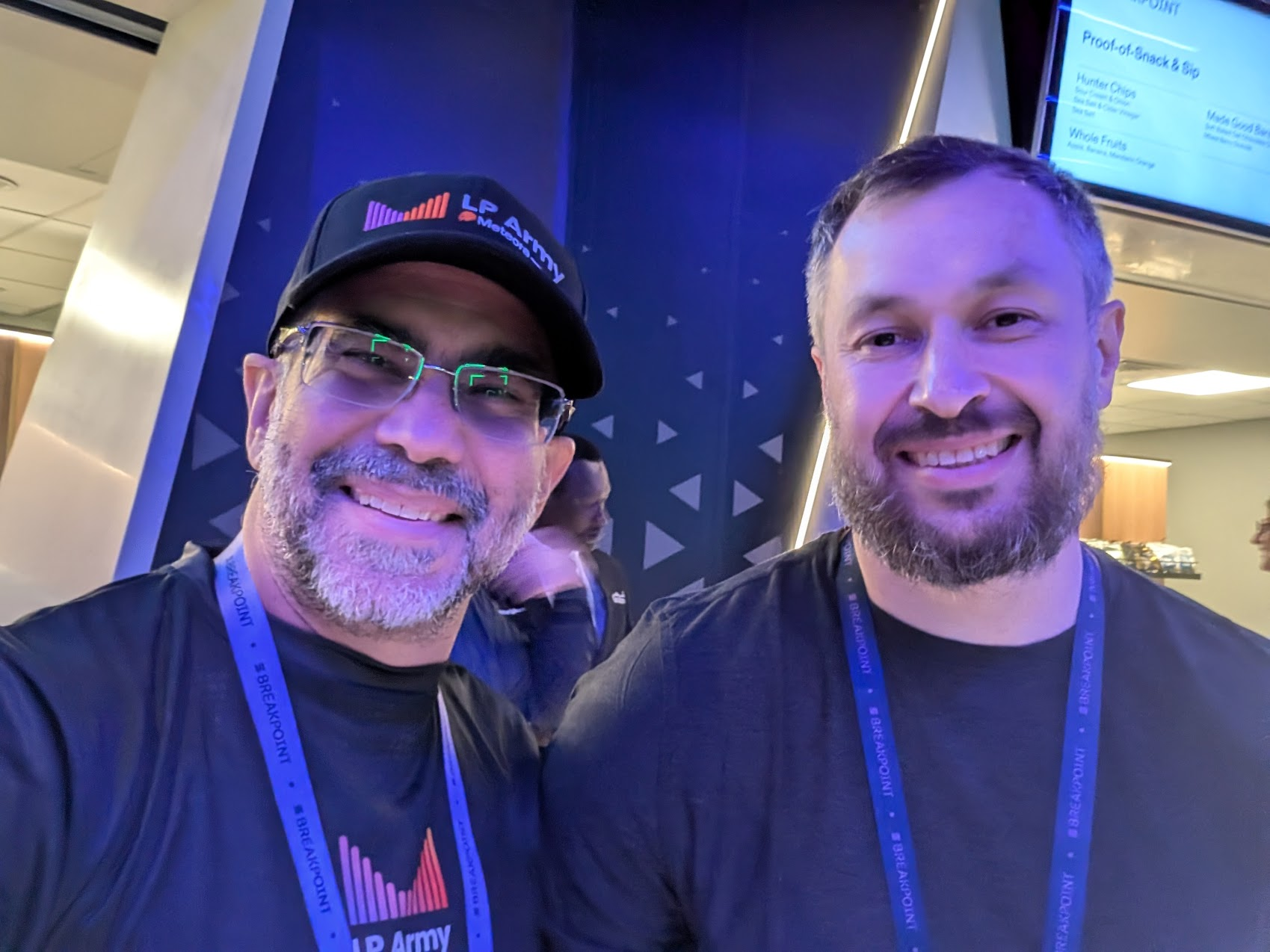
I saw some amazing talks, particularly impressive was @RaoulGMI's keynote on day 1. I actually sent it to my father, because he keeps asking me if he should invest in Bitcoin, and I keep telling him he shouldn't. I think he needs a different perspective from someone else that will help him make a better-informed decision.
I wanted to support my LP Army brothers at @met_engine and @cleopetrafun, but they shuffled the schedule around, didn't update the website, and I missed them. I came in and caught the last minute of @cleopetrafun's talk, even though I arrived 10 minutes earlier than the schedule indicated. I did at least get a chance to connect with them right afterward to apologize for not being there for them.
But you know what, it didn't matter. The lock-in was JAM PACKED!!! I wanted to sit right up front where they could see me there in support, but it would have been impossible. There were no seats! It was awesome to see that they didn't even need my support.
Breakpoint was definitely better than Met Dhabi for making the connections I need to launch my encore career. At Met Dhabi, I introduced my new serial entrepreneur friend to the LP Army, and during Breakpoint he returned the favor and put me in touch with founders, creators, managing directors at JP Morgan, etc.
Calling All Uni Students
If you're in school, and you're interested in taking over any of my open source projects or rebuilding them, please reach out to me. I will pay you nothing, because I have no cashflow (yet) to pay you with. I will offer you guidance and you will work on a project the crypto community is in need of. You'll get to work with TypeScript, SQLite, DuckDB, Python, deployment pipelines, InnoDB local browser storage, and all the other stuff I throw into the pot.
Turning a Hobby Into a Second Career
I've been looking for jobs in my area of professional expertise with no luck at all. Unfortunately, my professional expertise is very broad, I'm at the ATH of my salary, and I'm fairly late in my career. No one wants to take a chance on an old fart like me who's either going to cost them more than they want to pay, or who's going to settle for something they're overqualified for and leave. It's no wonder my inbox is filled with rejection letters every day.
But I never worry about it, because worrying isn't going to fix anything. I have to keep picking myself up. I have Karma on my side. Breakpoint convinced me that I need to stop dreaming about a second career in crypto, and just do it. LFG!!! I worked a 10 hour shift writing this, and it will serve as my cover letter to everyone I connected with.
Let's Talk
I'm a serial problem solver with a wide array of knowledge in business and crypto. Let's discuss where I might be able to fit in and help you solve some problems. Schedule some time on my calendly or hit me up on any of my socials.
I'm open to whatever you want that's best for the both of us and our situations: contracting, consulting, permanent role, DeFi education, speaking engagements, product development, and more.
If you know someone else that may benefit from my expertise, I would love for you to share my website with them.